



Chrome Extension Time Tracking
Log hours in Chrome, on any tab. The RabbitWork extension opens the timer in the browser. The entry goes to Rabbiit with the project, timesheet, cost, and margin — without a spreadsheet at the end of the day.
Install Chrome extension You need a Rabbiit account. Create account
The timer opens on any tab
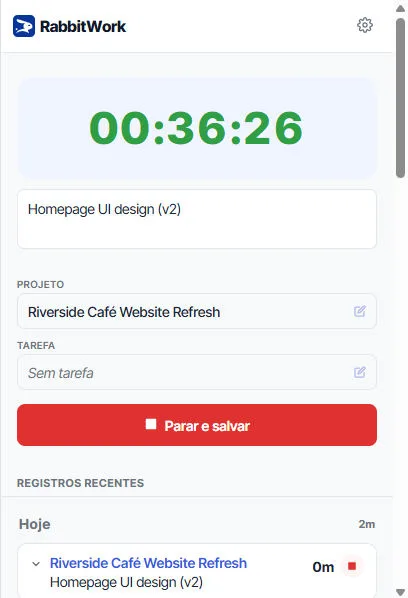
The RabbitWork extension puts the Rabbiit timer in Chrome. The popup is the same on any site: you describe the work, choose the project and the task, watch the time, and save.
Click the icon in the Chrome toolbar. While time is running, the timer shows in green at the top of the popup. When you finish, Stop and save sends the hours to the account. Recent entries shows what you logged today, without opening the app.
The steps are in How to use the browser extension.
A reminder so the hour is not forgotten
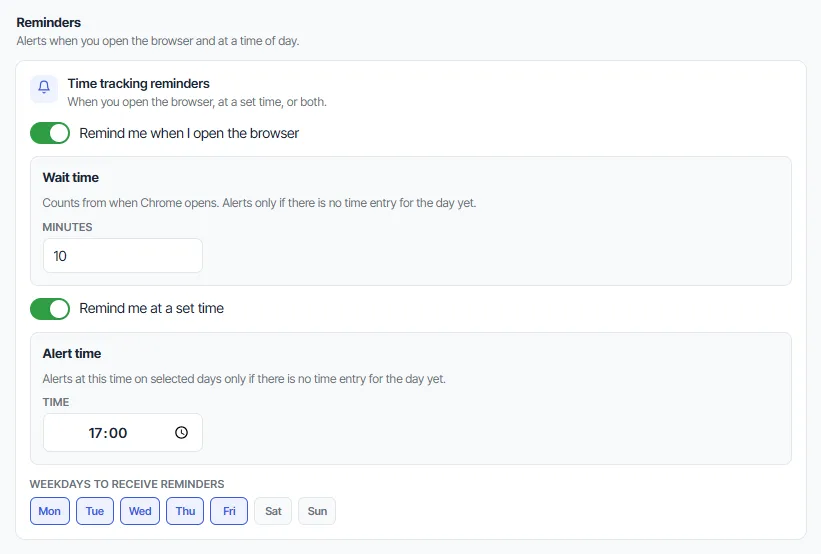
Reminders start off. You can be notified after Chrome opens, and also at a fixed time. Monday to Friday come selected.
The alert when the browser opens waits for the minutes in Wait time. The default is 10 minutes. The clock alert uses Alert time. The default is 17:00. Neither fires if there is already a time entry that day, if the stopwatch is already running, if that weekday is turned off, or if that alert already fired today.
The notification stays on screen until Dismiss or Start stopwatch.
The timer can start on its own
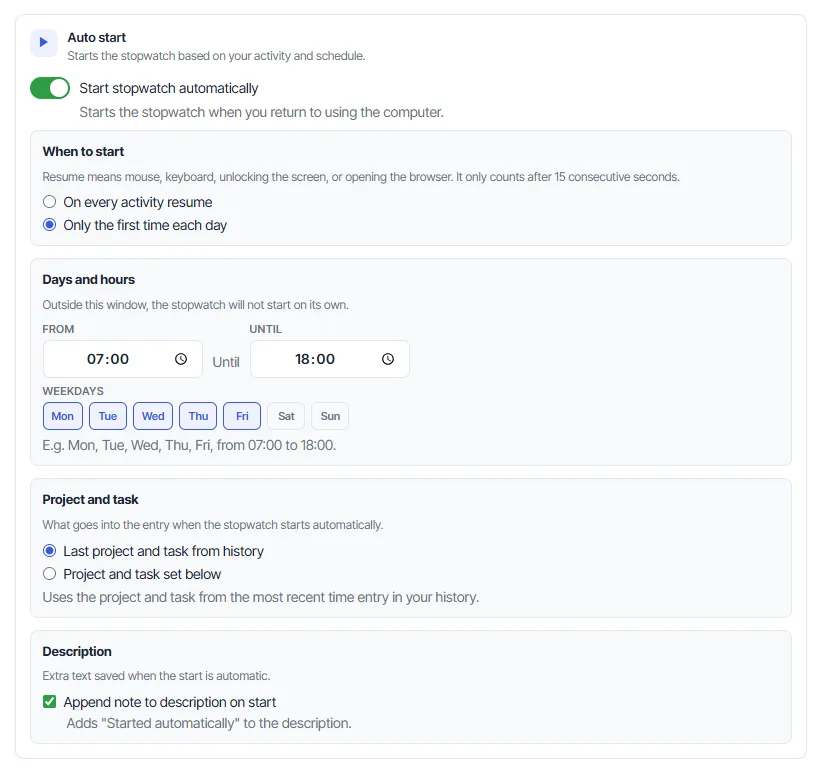
Start stopwatch automatically starts the clock when you return to the computer: mouse, keyboard, unlocking the screen, or opening Chrome. It only counts after 15 consecutive seconds of that activity.
The default is Only the first time each day, Monday to Friday, from 07:00 to 18:00, using the last project and task from history. The description can gain the text "Started automatically". Without a resolved project, the stopwatch does not start.
And stop when you step away
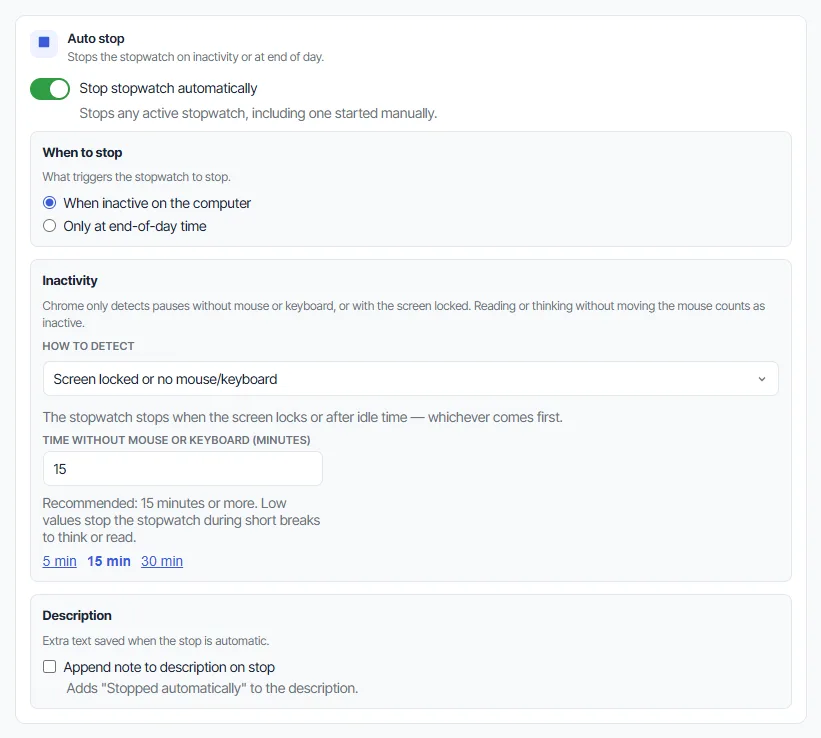
Stop stopwatch automatically applies to any running stopwatch, including one you started by hand. The default is to stop when you are inactive on the computer. You can also stop only at the end-of-day time.
Chrome notices a pause with no mouse or keyboard, or with the screen locked. The default wait is 15 minutes. Reading or thinking without moving the mouse counts as idle.
Chrome hours become project information
When you save, Rabbiit receives the entry with the project, task, and description. Managers get timesheets, approvals, rates, cost, budget, and margin.
Chrome stays open. Rabbiit closes the project month.
Hours logged in the popup show where the project's time, cost, and margin are going.
See where time is going
See where time is going, by person, day, task, and project.
Close the week with approval
The team submits hours and the manager approves them before month-end.
Calculate billable value
Calculate the billable value of every hour logged in the popup.
Know what has been billed
Mark what has been billed and export it to the company's finance tool.
Understand the real cost
Turn worked hours into the team's actual project cost.
Track budget consumption
Track how much of the project budget has already been used.
Avoid estimate overruns
Compare planned and actual hours before the project runs over.
Help center links
How to install the extension, turn on reminders, and the automatic timer.
FAQ
Do I need to be in a specific tool to log time?
No. The popup opens on any Chrome tab. The extension icon is enough.
Does the team have to log hours in two places?
No. Stop and save in the popup sends the entry to Rabbiit, with the project and the description.
Can the team be reminded to log time?
Yes. The extension alerts you when Chrome opens and at a set time. Both alerts start off.
Can the timer start and stop on its own?
Yes. It can start when you return to the computer and stop on idle time or at the end of the workday. Both options start off.
Do I need to issue the invoice in the extension?
No. The extension records the time. In Rabbiit, mark what has been billed and export it to the finance tool the company already uses.
Is this attendance tracking or monitoring?
No. It is project time tracking. Rabbiit does not take screenshots or monitor what people do on their computers.
Rabbiit
Try Rabbiit free
14 days on the full plan, no credit card. The permanent Free plan covers 2 users.
Start for free